
Instructions for posting a biography
Follow the instructions below to post a biography on our website, which is built on WordPress. The process includes editing an existing post and adding media, a featured image and videos.
First, log in to the MEMBERS MANAGEMENT area with the login details the administrators sent you after you registered. If you would like to register, click MEMBER REGISTRATION.
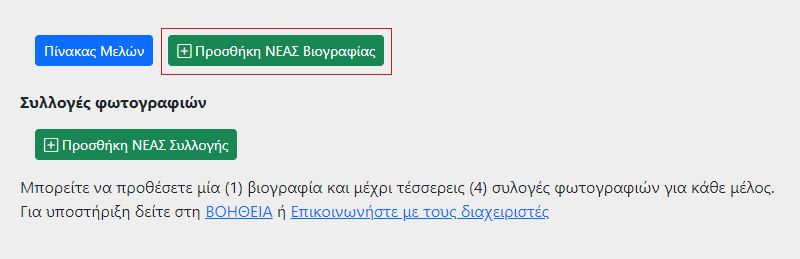
In the members list, choose the member whose biography you want to add. Then click the "Add NEW Biography" button (Image 1). In the English version of Members Management the biography is created in English and is linked to the Greek biography of the same member, if there is one.
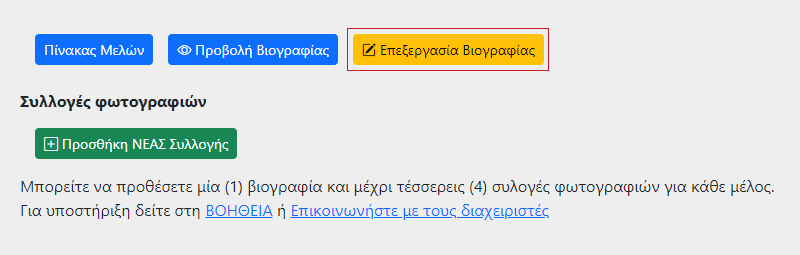
Then click the "Edit Biography" button (Image 2) to open the editor of the biography post. In the editor you can add or edit the text of the biography. Use the formatting tools to format the text as you wish.
Adding images
- Click the point in the text where you want to add an image.
- Press the "Add media" button above the editor.
- Choose the image from the media library or upload a new one from your computer.
- Set the display options and insert the image into the post.
- After you insert the image, click on it to choose its alignment.
Adding a featured image
- In the right-hand column of the editor, find the "Featured image" section.
- Click "Set featured image".
- Choose or upload an image in landscape orientation.
- Set the image as the featured image of the post.
Adding videos
The personal videos you would like to include in Kartalis Tree can be published in one of the following ways:
Option 1: You publish the video on YouTube yourself and embed it in your biography or in the biography of a member of your family.
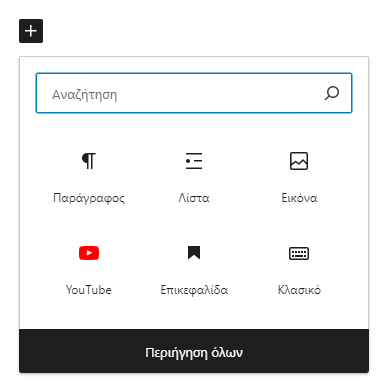
To embed a YouTube video in Kartalis Tree, first copy the address (link) of the video. Then click the point in the biography where you want to insert it, and then the "+" symbol (Image 3). From the available options choose YouTube, paste the link of the video into the field and press "Embed". If the YouTube option is not shown, choose "Browse all" and find the YouTube icon in the list.
Option 2: You publish the video on YouTube yourself and send us the link, so that we embed it in the biography you tell us.
Option 3: You send your video to Kartalis Tree and we post it on YouTube, on the channel https://www.youtube.com/@kartalistree
See here instructions and tips on how to prepare your personal video.
If you have any problem, please contact us through the contact form or directly at kartalistree@gmail.com.